
How to create a migraine PDF report on iPhone
A step-by-step guide to exporting your Migraine Tracker history, with real app screens and a page-by-page explanation of the sample PDF.
In Migraine Tracker, open Reports → PDF Report, choose a period and tap Generate PDF. Then save or share the file from your iPhone.
Open the two-page sample PDFThe screens and downloadable report use fictional records. You can view the sample without installing the app.
Check your recorded history
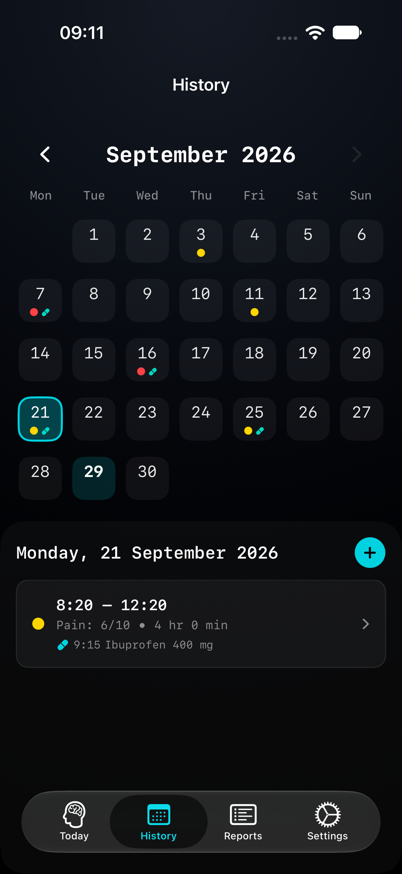
Open History, select a day and tap an entry to review its details. Check the date, start and end times, pain level and medication information. Use Edit if you need to correct an entry.
Here, 21 September contains a four-hour attack with pain recorded as 6/10. It is one of six attack dates in the example’s 30-day period.
Keep estimates clear in your notes. The report can only summarise what you have recorded.
Open PDF Report
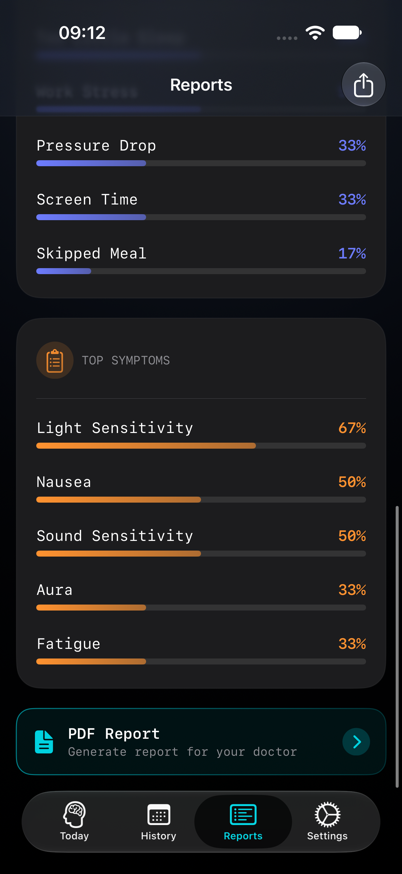
Tap Reports in the bottom navigation. Scroll to the bottom and tap PDF Report, labelled “Generate report for your doctor”.
PDF export requires Premium.
The share icon at the top of Reports opens the separate CSV and JSON exports. Use the PDF Report card for the formatted document shown here.
Choose the PDF period
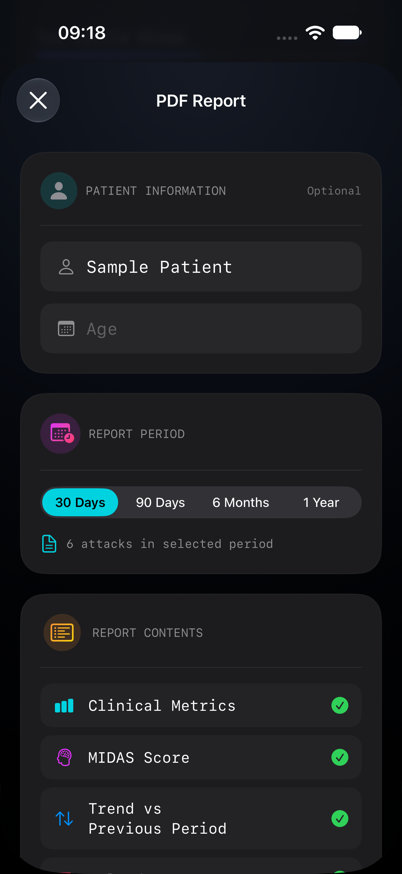
Select 30 Days, 90 Days, 6 Months or 1 Year. Patient name and age are optional.
The form initially selects 90 Days. Check it even if you were viewing a 30-day overview in Reports: the PDF has its own period setting.
The count beneath the selector shows the attack entries included. Our example has six. If the count is zero, check the selected period and your history.
Generate the PDF
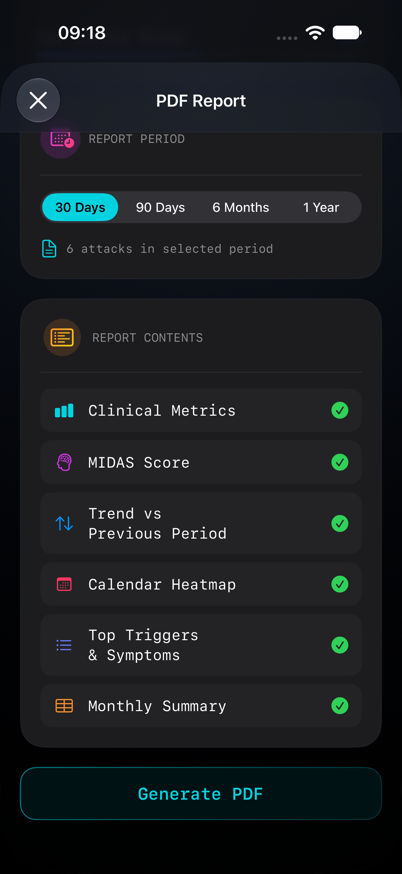
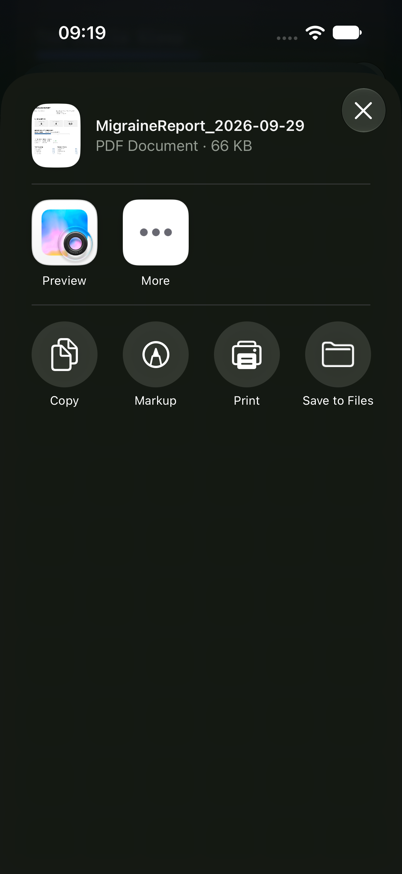
Scroll past the report contents and tap Generate PDF. Wait for the file to be created; the iPhone share sheet opens when it is ready.
The button is unavailable while a report is being generated or when the selected period has no attack entries.
Your report uses your own records and selected period. Its dates, numbers and length may differ from this sample.
Save or share the file
In the share sheet, choose Save to Files, pick a folder and tap Save. You can also use the available sharing or printing options.
Open the saved PDF and check its date range and contents before bringing it to an appointment. If a clinic asks for a copy, use its preferred way of receiving it.
The screenshot shows the generated PDF in the share sheet. Available apps and the position of Save to Files vary between iPhones.
The summary, at a glance
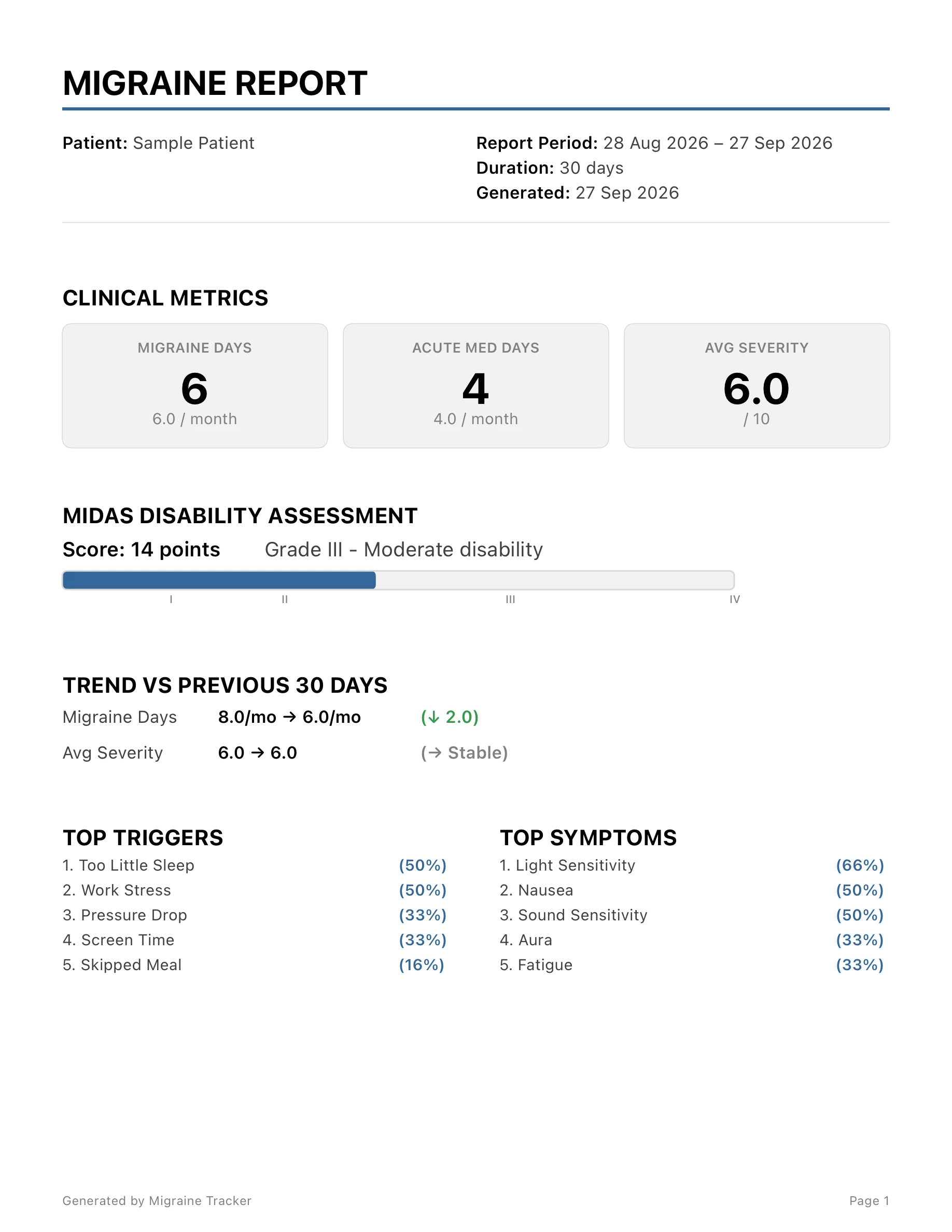
The downloadable sample covers 28 August–27 September 2026. Its first page brings the main figures together.
- Dates and patient information
- The reporting period, generation date and any optional patient details entered in the form.
- Recorded metrics
- 6 migraine days, 4 acute medication days and 6.0/10 average severity. Medication days count days with recorded acute medication use, not individual doses.
- MIDAS assessment
- The latest available assessment; this sample shows 14 points. It is a separate assessment, not a score calculated from those six diary entries.
- Previous-period comparison
- The sample compares these 30 days with the preceding 30 days. A difference describes the recorded history; it does not show that the app caused an improvement.
- Top triggers and symptoms
- Items selected in the entries. “Too Little Sleep” appears in 50% of the six sample attacks. A recorded association does not establish a cause.
The calendar and monthly summary
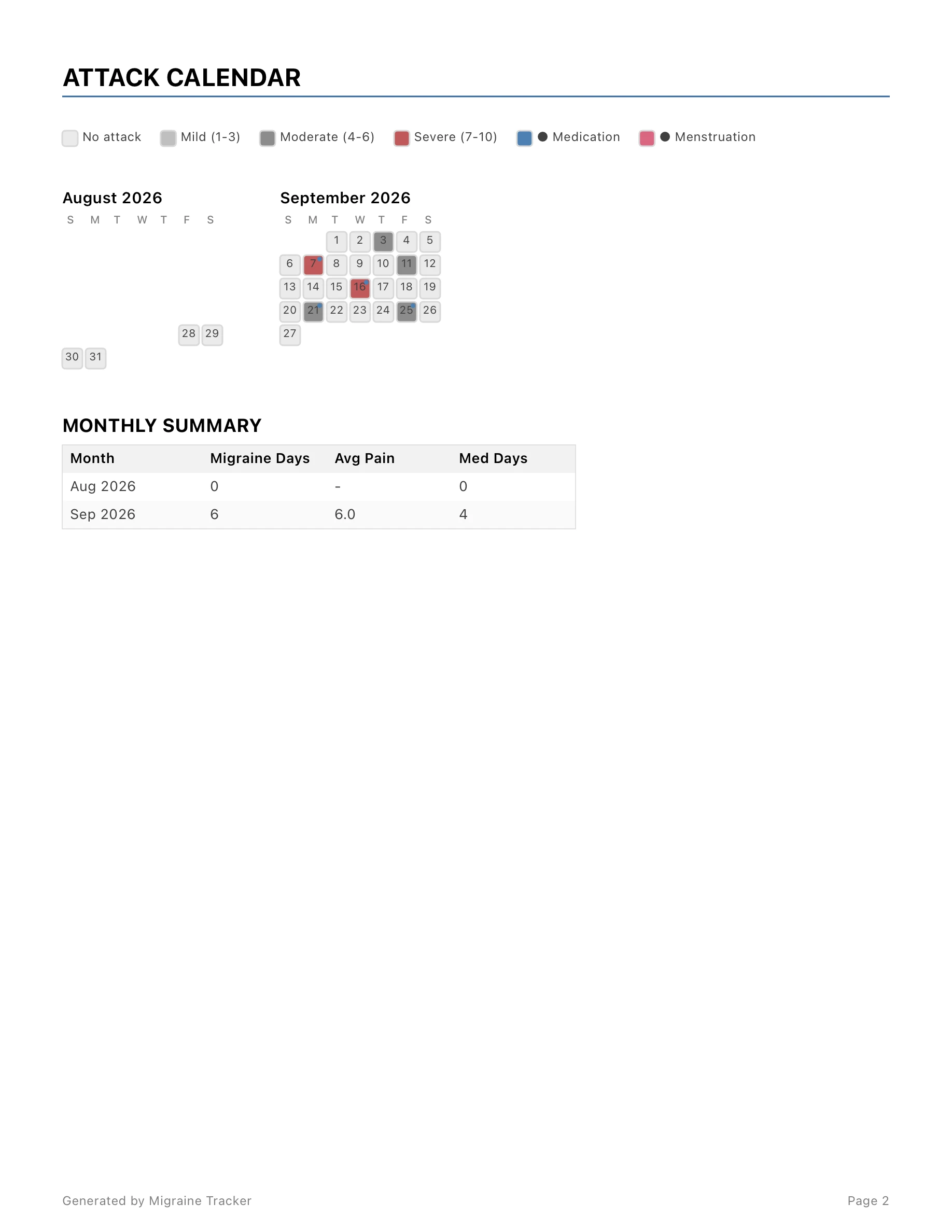
The calendar places recorded attacks on their dates. Its legend explains the pain colours and medication markers, so you can find a date to revisit in History.
Below it, the monthly table lists migraine days, average pain and medication days. The August row covers only the part of August inside the selected period, starting on the 28th. Its zero does not describe the whole month.
An unmarked date does not establish that you had no symptoms if nothing was recorded.
Before you share
- Check that the report covers the period you intended.
- Review any personal details you chose to include.
- Keep your underlying entries available for questions about a specific day.
2 pages · 65 KB · Fictional demonstration data
For an overview of the available formats, see Migraine reports and exports.
App screens checked with Migraine Tracker 1.0.8 on 29 September 2026 in an iPhone simulator. Screens show fictional demonstration data; the share sheet can differ by iOS version and installed apps. This guide explains app use, not diagnosis or treatment.